TheDocumentation Index
Fetch the complete documentation index at: https://mintlify-mintlify-improve-search-documentation-53798.mintlify.app/llms.txt
Use this file to discover all available pages before exploring further.
docs.json file lets you turn a collection of Markdown files into a navigable, customized documentation site. This required configuration file controls styling, navigation, integrations, and more. Think of it as the blueprint for your documentation.
Settings in docs.json apply globally to all pages.
Setting up your docs.json
To get started, you only need to specify theme, name, colors.primary, and navigation. Other fields are optional and you can add them as your documentation needs grow.
For the best editing experience, include the schema reference at the top of your docs.json file. This enables autocomplete, validation, and helpful tooltips in most code editors:
{
"$schema": "https://mintlify.com/docs.json",
"theme": "mint",
"name": "Your Docs",
"colors": {
"primary": "#ff0000"
},
"navigation": {
// Your navigation structure
}
// The rest of your configuration
}
Reference
This section contains the full reference for thedocs.json file.
Customization
mint, maple, palm, willow, linden, almond, aspen.See Themes for more information.Show Colors
Show Colors
#.#.#.Show Logo
Show Logo
/logo.png/logo-dark.pnghttps://mintlify.com/favicon.pngShow Thumbnails
Show Thumbnails
colors field.Show Fonts
Show Fonts
Show Styling
Show Styling
section to show the section name or breadcrumbs to show the full navigation path. Defaults to section.- Set to
trueto force-load LaTeX stylesheets when automatic detection fails to recognize your mathematical expressions. - Set to
falseto prevent loading LaTeX stylesheets for improved performance if you don’t use mathematical expressions but have content that triggers false-positive detection.
"system".Simple configuration:"system": Match current site mode (light or dark)"dark": Always use dark mode
- Use a string to specify a single Shiki theme for all code blocks
- Use an object to specify separate Shiki themes for light and dark modes
"styling": {
"codeblocks": {
"theme": "dracula"
}
}
Show languages
Show languages
"styling": {
"codeblocks": {
"languages": {
"custom": ["/languages/my-custom-language.json"]
}
}
}
Show Icons
Show Icons
fontawesome.You can only use one icon library for your project. All icon names in your documentation must come from the same library.Show Fonts
Show Fonts
- URL to a hosted font, such as https://mintlify-assets.b-cdn.net/fonts/Hubot-Sans.woff2.
- Path to a local font file, such as
/fonts/Hubot-Sans.woff2.
family name, so no source URL is needed.source field.Show Heading
Show Heading
- URL to a hosted font, such as https://mintlify-assets.b-cdn.net/fonts/Hubot-Sans.woff2.
- Path to a local font file, such as
/fonts/Hubot-Sans.woff2.
family name, so no source URL is needed.source field.Show Body
Show Body
- URL to a hosted font, such as https://mintlify-assets.b-cdn.net/fonts/Hubot-Sans.woff2.
- Path to a local font file, such as
/fonts/Hubot-Sans.woff2.
family name, so no source URL is needed.source field.Show Background
Show Background
Structure
Show Navbar
Show Navbar
Show Links
Show Links
- Font Awesome icon name, if you have the
icons.libraryproperty set tofontawesomein yourdocs.json - Lucide icon name, if you have the
icons.libraryproperty set tolucidein yourdocs.json - Tabler icon name, if you have the
icons.libraryproperty set totablerin yourdocs.json - URL to an externally hosted icon
- Path to an icon file in your project
- SVG code wrapped in curly braces
- Convert your SVG using the SVGR converter.
- Paste your SVG code into the SVG input field.
- Copy the complete
<svg>...</svg>element from the JSX output field. - Wrap the JSX-compatible SVG code in curly braces:
icon={<svg ...> ... </svg>}. - Adjust
heightandwidthas needed.
regular, solid, light, thin, sharp-solid, duotone, brands.Show Primary
Show Primary
button for a standard button with a label or github for a link to a GitHub repository with icon.type is button.type is github, must be a GitHub repository URL.Show Navigation
Show Navigation
Show Global
Show Global
Show Languages
Show Languages
Show Tabs
Show Tabs
- Font Awesome icon name, if you have the
icons.libraryproperty set tofontawesomein yourdocs.json - Lucide icon name, if you have the
icons.libraryproperty set tolucidein yourdocs.json - Tabler icon name, if you have the
icons.libraryproperty set totablerin yourdocs.json - URL to an externally hosted icon
- Path to an icon file in your project
- SVG code wrapped in curly braces
- Convert your SVG using the SVGR converter.
- Paste your SVG code into the SVG input field.
- Copy the complete
<svg>...</svg>element from the JSX output field. - Wrap the JSX-compatible SVG code in curly braces:
icon={<svg ...> ... </svg>}. - Adjust
heightandwidthas needed.
regular, solid, light, thin, sharp-solid, duotone, brands.Show Anchors
Show Anchors
- Font Awesome icon name, if you have the
icons.libraryproperty set tofontawesomein yourdocs.json - Lucide icon name, if you have the
icons.libraryproperty set tolucidein yourdocs.json - Tabler icon name, if you have the
icons.libraryproperty set totablerin yourdocs.json - URL to an externally hosted icon
- Path to an icon file in your project
- SVG code wrapped in curly braces
- Convert your SVG using the SVGR converter.
- Paste your SVG code into the SVG input field.
- Copy the complete
<svg>...</svg>element from the JSX output field. - Wrap the JSX-compatible SVG code in curly braces:
icon={<svg ...> ... </svg>}. - Adjust
heightandwidthas needed.
regular, solid, light, thin, sharp-solid, duotone, brands.Show Dropdowns
Show Dropdowns
- Font Awesome icon name, if you have the
icons.libraryproperty set tofontawesomein yourdocs.json - Lucide icon name, if you have the
icons.libraryproperty set tolucidein yourdocs.json - Tabler icon name, if you have the
icons.libraryproperty set totablerin yourdocs.json - URL to an externally hosted icon
- Path to an icon file in your project
- SVG code wrapped in curly braces
- Convert your SVG using the SVGR converter.
- Paste your SVG code into the SVG input field.
- Copy the complete
<svg>...</svg>element from the JSX output field. - Wrap the JSX-compatible SVG code in curly braces:
icon={<svg ...> ... </svg>}. - Adjust
heightandwidthas needed.
regular, solid, light, thin, sharp-solid, duotone, brands.Show Products
Show Products
- Font Awesome icon name, if you have the
icons.libraryproperty set tofontawesomein yourdocs.json - Lucide icon name, if you have the
icons.libraryproperty set tolucidein yourdocs.json - Tabler icon name, if you have the
icons.libraryproperty set totablerin yourdocs.json - URL to an externally hosted icon
- Path to an icon file in your project
- SVG code wrapped in curly braces
- Convert your SVG using the SVGR converter.
- Paste your SVG code into the SVG input field.
- Copy the complete
<svg>...</svg>element from the JSX output field. - Wrap the JSX-compatible SVG code in curly braces:
icon={<svg ...> ... </svg>}. - Adjust
heightandwidthas needed.
regular, solid, light, thin, sharp-solid, duotone, brands.Show Interaction
Show Interaction
true to force navigation to the first page when a navigation group is expanded. Set to false to prevent navigation and only expand or collapse the group. Leave unset to use the theme’s default behavior.Show Metadata
Show Metadata
false.Show Footer
Show Footer
{
"x": "https://x.com/mintlify"
}
x, website, facebook, youtube, discord, slack, github, linkedin, instagram, hacker-news, medium, telegram, twitter, x-twitter, earth-americas, bluesky, threads, reddit, podcastShow Contextual
Show Contextual
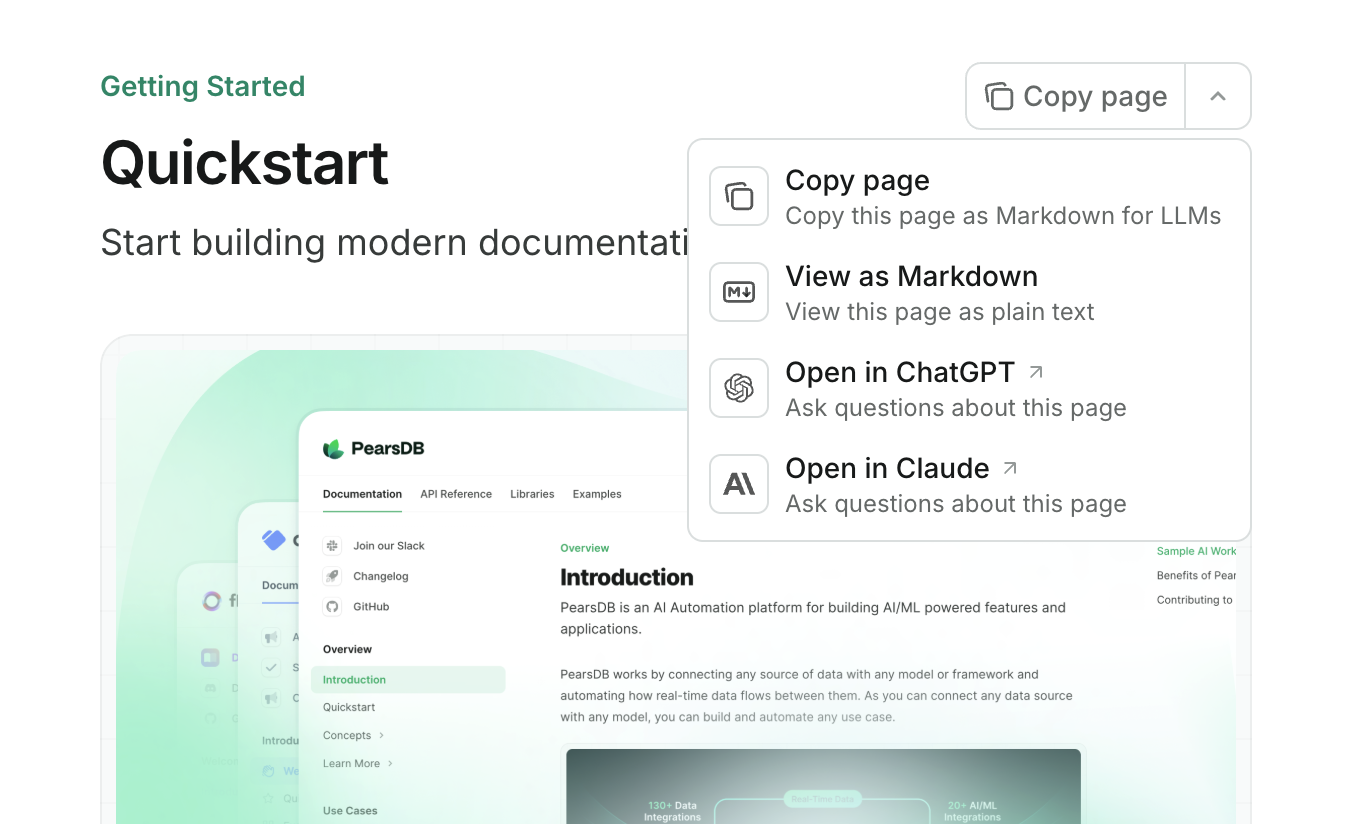
copy: Copy the current page as Markdown to the clipboard.view: View the current page as Markdown in a new tab.chatgpt: Send the current page content to ChatGPT.claude: Send the current page content to Claude.perplexity: Send the current page content to Perplexity.mcp: Copies your MCP server URL to the clipboard.cursor: Installs your hosted MCP server in Cursor.vscode: Installs your hosted MCP server in VSCode.

API Configurations
Show Api
Show Api
Show Params
Show Params
closed.Show Examples
Show Examples
bash(displayed as cURL)gojavajavascriptnode(displayed as Node.js)phppowershellpythonrubyswift
curl, golang, js, nodejs, rb, sh.all.false.SEO and search
Show Seo
Show Seo
navigable to index only pages that are in your docs.json navigation or choose all to index every page. Defaults to navigable.Show Search
Show Search
"search": {
"prompt": "Search documentation..."
}
Search functionality
Mintlify provides built-in search functionality that automatically indexes all pages in your documentation. The search feature includes:- Full-text search - Searches through page titles, descriptions, and content
- Keyboard shortcuts - Press
Cmd+K(Mac) orCtrl+K(Windows/Linux) to open search - Real-time results - See results as you type
- Context preview - View snippets of matching content
- Navigation integration - Search results respect your navigation structure
Search indexing
By default, Mintlify indexes all pages included in yournavigation configuration. To control which pages are indexed by search engines and included in search results, use the seo.indexing setting:
"seo": {
"indexing": "navigable" // Only index pages in navigation (default)
// or "all" // Index all pages including hidden ones
}
noindex: true in their frontmatter are excluded from search engine indexing but may still appear in your site’s internal search.
Customizing search appearance
You can customize the search bar placeholder text to provide context-specific guidance:"search": {
"prompt": "Search API docs, guides, and tutorials..."
}
Search best practices
Optimize page titles and descriptions
- Use clear, descriptive titles that match what users might search for
- Write concise descriptions that summarize page content
- Include relevant keywords naturally in titles and descriptions
- Keep titles under 60 characters for better display in search results
Structure content for searchability
- Use descriptive headings that reflect the content below them
- Break up long content with subheadings
- Include keywords in the first paragraph of each page
- Use consistent terminology throughout your documentation
Leverage keywords
Leverage keywords
- Add relevant keywords to page frontmatter:
--- title: "API Authentication" description: "Learn how to authenticate API requests" keywords: ["authentication", "API keys", "OAuth", "tokens"] --- - Use keywords that match your users’ search intent
- Include both technical terms and common phrases
Improve search relevance
- Place important information near the top of pages
- Use clear, specific language rather than vague terms
- Link related pages to help users discover connected content
- Keep content up-to-date to maintain search relevance
Integrations
Show Integrations
Show Integrations
Show Amplitude
Show Amplitude
Show Clearbit
Show Clearbit
Show Frontchat
Show Frontchat
Show Ga4
Show Ga4
Show Gtm
Show Gtm
Show Intercom
Show Intercom
Show Mixpanel
Show Mixpanel
Show Telemetry
Show Telemetry
false, feedback features are also disabled and do not appear on your documentation pages.Errors
Examples
- Basic example
- Interactive API example
- Multi-language example
{
"$schema": "https://mintlify.com/docs.json",
"theme": "maple",
"name": "Example Co.",
"description": "Example Co. is a company that provides example content and placeholder text.",
"colors": {
"primary": "#3B82F6",
"light": "#F8FAFC",
"dark": "#0F172A"
},
"navigation": {
"dropdowns": [
{
"dropdown": "Documentation",
"icon": "book",
"description": "How to use the Example Co. product",
"groups": [
{
"group": "Getting started",
"pages": [
"index",
"quickstart"
]
},
{
"group": "Customization",
"pages": [
"settings",
"users",
"features"
]
},
{
"group": "Billing",
"pages": [
"billing/overview",
"billing/payments",
"billing/subscriptions"
]
}
]
},
{
"dropdown": "Changelog",
"icon": "history",
"description": "Updates and changes",
"pages": [
"changelog"
]
}
]
},
"logo": {
"light": "/logo-light.svg",
"dark": "/logo-dark.svg",
"href": "https://example.com"
},
"navbar": {
"links": [
{
"label": "Community",
"href": "https://example.com/community"
}
],
"primary": {
"type": "button",
"label": "Get Started",
"href": "https://example.com/start"
}
},
"footer": {
"socials": {
"x": "https://x.com/example",
"linkedin": "https://www.linkedin.com/company/example",
"github": "https://github.com/example",
"slack": "https://example.com/community"
},
"links": [
{
"header": "Resources",
"items": [
{
"label": "Customers",
"href": "https://example.com/customers"
},
{
"label": "Enterprise",
"href": "https://example.com/enterprise"
},
{
"label": "Request Preview",
"href": "https://example.com/preview"
}
]
},
{
"header": "Company",
"items": [
{
"label": "Careers",
"href": "https://example.com/careers"
},
{
"label": "Blog",
"href": "https://example.com/blog"
},
{
"label": "Privacy Policy",
"href": "https://example.com/legal/privacy"
}
]
}
]
},
"integrations": {
"ga4": {
"measurementId": "G-XXXXXXXXXX"
},
"telemetry": {
"enabled": true
},
"cookies": {
"key": "example_cookie_key",
"value": "example_cookie_value"
}
},
"contextual": {
"options": [
"copy",
"view",
"chatgpt",
"claude"
]
},
"errors": {
"404": {
"redirect": false,
"title": "I can't be found",
"description": "What ever **happened** to this _page_?"
}
}
}
{
"$schema": "https://mintlify.com/docs.json",
"theme": "maple",
"name": "Example Co.",
"description": "Example Co. is a company that provides example content and placeholder text.",
"colors": {
"primary": "#3B82F6",
"light": "#F8FAFC",
"dark": "#0F172A"
},
"navigation": {
"dropdowns": [
{
"dropdown": "Documentation",
"icon": "book",
"description": "How to use the Example Co. product",
"groups": [
{
"group": "Getting started",
"pages": [
"index",
"quickstart"
]
},
{
"group": "Customization",
"pages": [
"settings",
"users",
"features"
]
},
{
"group": "Billing",
"pages": [
"billing/overview",
"billing/payments",
"billing/subscriptions"
]
}
]
},
{
"dropdown": "API reference",
"icon": "terminal",
"description": "How to use the Example Co. API",
"groups": [
{
"group": "API reference",
"pages": [
"api-reference/introduction"
]
},
{
"group": "Endpoints",
"openapi": {
"source": "openapi.json"
}
}
]
},
{
"dropdown": "Changelog",
"icon": "history",
"description": "Updates and changes",
"pages": [
"changelog"
]
}
]
},
"api": {
"playground": {
"display": "interactive"
},
"examples": {
"languages": ["javascript", "curl", "python"]
}
},
"logo": {
"light": "/logo-light.svg",
"dark": "/logo-dark.svg",
"href": "https://example.com"
},
"navbar": {
"links": [
{
"label": "Community",
"href": "https://example.com/community"
}
],
"primary": {
"type": "button",
"label": "Get Started",
"href": "https://example.com/start"
}
},
"footer": {
"socials": {
"x": "https://x.com/example",
"linkedin": "https://www.linkedin.com/company/example",
"github": "https://github.com/example",
"slack": "https://example.com/community"
},
"links": [
{
"header": "Resources",
"items": [
{
"label": "Customers",
"href": "https://example.com/customers"
},
{
"label": "Enterprise",
"href": "https://example.com/enterprise"
},
{
"label": "Request Preview",
"href": "https://example.com/preview"
}
]
},
{
"header": "Company",
"items": [
{
"label": "Careers",
"href": "https://example.com/careers"
},
{
"label": "Blog",
"href": "https://example.com/blog"
},
{
"label": "Privacy Policy",
"href": "https://example.com/legal/privacy"
}
]
}
]
},
"integrations": {
"ga4": {
"measurementId": "G-XXXXXXXXXX"
},
"telemetry": {
"enabled": true
},
"cookies": {
"key": "example_cookie_key",
"value": "example_cookie_value"
}
},
"contextual": {
"options": [
"copy",
"view",
"chatgpt",
"claude"
]
},
"errors": {
"404": {
"redirect": false,
"title": "I can't be found",
"description": "What ever **happened** to this _page_?"
}
}
}
{
"$schema": "https://mintlify.com/docs.json",
"theme": "maple",
"name": "Example Co.",
"description": "Example Co. is a company that provides example content and placeholder text.",
"colors": {
"primary": "#3B82F6",
"light": "#F8FAFC",
"dark": "#0F172A"
},
"navigation": {
"global": {
"anchors": [
{
"anchor": "Documentation",
"href": "https://mintlify.com/docs"
},
{
"anchor": "Changelog",
"href": "https://mintlify.com/docs/changelog"
}
]
},
"languages": [
{
"language": "en",
"dropdowns": [
{
"dropdown": "Documentation",
"icon": "book",
"description": "How to use the Example Co. product",
"pages": [
{
"group": "Getting started",
"pages": ["index", "quickstart"]
},
{
"group": "Customization",
"pages": ["settings", "users", "features"]
},
{
"group": "Billing",
"pages": [
"billing/overview",
"billing/payments",
"billing/subscriptions"
]
}
]
},
{
"dropdown": "Changelog",
"icon": "history",
"description": "Updates and changes",
"pages": ["changelog"]
}
]
},
{
"language": "es",
"dropdowns": [
{
"dropdown": "Documentación",
"icon": "book",
"description": "Cómo usar el producto de Example Co.",
"pages": [
{
"group": "Comenzando",
"pages": ["es/index", "es/quickstart"]
},
{
"group": "Personalización",
"pages": ["es/settings", "es/users", "es/features"]
},
{
"group": "Billing",
"pages": [
"es/billing/overview",
"es/billing/payments",
"es/billing/subscriptions"
]
}
]
},
{
"dropdown": "Changelog",
"icon": "history",
"description": "Actualizaciones y cambios",
"pages": ["es/changelog"]
}
]
}
]
},
"logo": {
"light": "/logo-light.svg",
"dark": "/logo-dark.svg",
"href": "https://example.com"
},
"navbar": {
"links": [
{
"label": "Community",
"href": "https://example.com/community"
}
],
"primary": {
"type": "button",
"label": "Get Started",
"href": "https://example.com/start"
}
},
"footer": {
"socials": {
"x": "https://x.com/example",
"linkedin": "https://www.linkedin.com/company/example",
"github": "https://github.com/example",
"slack": "https://example.com/community"
},
"links": [
{
"header": "Resources",
"items": [
{
"label": "Customers",
"href": "https://example.com/customers"
},
{
"label": "Enterprise",
"href": "https://example.com/enterprise"
},
{
"label": "Request Preview",
"href": "https://example.com/preview"
}
]
},
{
"header": "Company",
"items": [
{
"label": "Careers",
"href": "https://example.com/careers"
},
{
"label": "Blog",
"href": "https://example.com/blog"
},
{
"label": "Privacy Policy",
"href": "https://example.com/legal/privacy"
}
]
}
]
},
"integrations": {
"ga4": {
"measurementId": "G-XXXXXXXXXX"
},
"telemetry": {
"enabled": true
},
"cookies": {
"key": "example_cookie_key",
"value": "example_cookie_value"
}
},
"contextual": {
"options": ["copy", "view", "chatgpt", "claude"]
},
"errors": {
"404": {
"redirect": false,
"title": "I can't be found",
"description": "What ever **happened** to this _page_?"
}
}
}
Upgrading from mint.json
If your docs project uses the deprecated mint.json file, follow these steps to upgrade to docs.json.
Install or update the CLI
npm i -g mint
mint update
Create your docs.json file
mint upgrade
docs.json file from your existing mint.json. Review the generated file to ensure all settings are correct.